Website powered by

7/22/21 & 7/28/21 - Electronics - 4 Buttons!

General / 11 January 2022

7/22/21 & 7/28/21

Final electronics project of the summer

Using Unity, I am making a pathogen making experience. The experience will be an educational experience teaching users what pathogens are, and how to prevent them. This system would be displayed within a young adult/children's museum setting within a human body exhibition. The experience will include a projection mapped table with four different arcade buttons. The buttons will allow the users to make choices and alter the experience. 

The electronics portion of this project will incorporate four momentary switch arcade buttons connected to a Leonardo Arduino. The buttons will trigger events to happen within a Unity patch.

I referenced these videos:

  1. video 1
  2. video 2

Before using the arcade buttons I prototyped the system using a breadboard and tactile switches. I created a daisy chain using the blue wires, this connected all the ground connection to one ground pin on the Arduino.

I could not find a tutorial online teaching how to work with multiple buttons in the way I was using them specifically. with only four buttons having a different output. Most of the examples seemed to be more complicated than I needed. The code is very similar to the "one button setup" I used previously (7/12/21) only I have four buttons. I simplified the code from 7/12/21 and removed the "else variables" and the "old/new buttons variables" I ended up spending a couple hours adding and subtracting different elements until something worked. This code (shown below) was definitely the hardest/most time consuming part of this build. However, was a good opportunity to challenge myself and illustrate I can work without following tutorials. 

Understanding the "(ButtonRead ==0)" was challenging. At first I used a "1" instead of a "0". This is because "1" = on and "0" = off but when the code reads "(ButtonRead ==1)" the code would continuously spit out numbers, not exactly sure why. I very much enjoyed working with this Arduino text editor because it was able t tell me why the code was not working most of the time.

Once I was able to make the small button system work I replaced the tactile switches with arcade buttons. I used spade connectors to connect the wires to the buttons. The wire setup is exactly the same. all the grounds are daisy chained together to one ground pin on the Arduino I din not have to use the pull up or dull down resistor with these buttons.

(bottom view)


(top view) ***The Almond milk box is just a prototype 

Once I worked out the exact locations the buttons needed to be in, I replaced the Almond Milk box with a more polished looking foam core. 

(bottom view)

(top view)

Picture of the full polished prototype system (the system is off). The buttons are connected to the Arduino Leonardo. The Leonardo is connected to the laptop. The laptop is running a Unity patch. The Unity patch is being project mapped onto the buttons one to one. The user of the system follows the instructions projected onto the foam board and presses the corresponding buttons to progress further into the experience.

(Pictures and videos of the system in action, below)

(more documentation photos found here)

7/21/21 - Electronics - Back to the Buttons

General / 11 January 2022

7/21/21

Back to the Buttons!

I ordered some white arcade buttons and spade wire terminals and they arrived today. to test the arcade buttons I am creating the same button system as I did on 6/25/21.


7/16/21 - Electronics - SERVO MOTERS!

General / 11 January 2022

7/16/21

I watched these videos as an introduction into Servo Motors.

  1. video 1
  2. video 2

I followed along to the second video tutorial (linked above). For this exercise I am using 1 Deluxe Hltec HS-422 Servo Motor, a 10kΩ potentiometer, connector wires, and Arduino Leonardo and a breadboard. The goal is to be able to alter the rotation of the Servo Motor by altering the resistance value from the potentiometer. Important note: this particular Servo Motor only rotates 180 degrees.

Below is a close up of the Servo Motor output wires

  • BLACK: ground
  • RED: 5v
  • Yellow: signal

Below illustrates what each pin of the 10kΩ potentiometer means.

The set up is rather straightforward. the ground and 5v are taken from the Arduino to the Breadboard. Both servo and potentiometer connect to ground and 5v respectively. Servo signal feeds into Arduino pin 9 and the potentiometer signal feeds into Arduino pin A1.

Link to Video

(below I explain what the code in the Arduino is doing)

Reflection

This process is deceptively simple and definitely not as hard as I first thought. However, I can see the difficulty and complexity increase with the addition of other Servos into the system. In the future, I would live to get a wireless transmitter so I could control the servos remotely. I am not a fan of the load high frequency squeal or whine coming from the motor. If I were to create a system using a Servos I would like to try and dampen the sound. This mini project using Servos has definitely opened other possibilities of adding physicals animation and repeatable timed motion to other projects. I am very interested about learning other ways to add physical movement using mini hydraulic systems, or other kinds of actuators. This will definitely not be the last time I use Servos.

7/12/21 - Electronics - Leonardo

General / 11 January 2022

7/12/21

The Arduino Leonardo arrived in the mail today. To ensure everything was working I uploaded an example LED blinking program in the Leonardo. (pictured below) The LED above the Green ON LED, blinks on and off. This tells me the IDE recognizes the board and I can successfully move forward. 

I then removed the off brand board from my breadboard and replaced it with the Leonardo Arduino. The circuit runs the same as it did before.

I uploaded the text code I made last week into the Leonardo and it worked. I was able to print out the letter "A" when I pushed the button. I then replaced "Keyboard.Print ("A") " with "Keyboard.Print ("Hello World") ". I updated the program and went to google. When I clicked the google search bar and pressed the button the words "Hello World" appears. 

(below is the code)

Next I reopened the p5.js program I made last week. The program features a rectangle when any keyboard button is pressed the rectangle will change from "white" to black" and vice versa. I am testing to see if I can create a physical button which can trigger events within a computer program. (such as Unity of p5.js).

Link to p5.js editor (code)

Link to Video

It works! However, small problem. When the physical button is held, the square continually changes back and forth from black to white. when the button is held I want the state to not change again until the button is pressed again. One solution, I changed the code in the p5.js editor. Instead of any button changing the rect color only specific keyboard buttons will.

       "A" will change rect to "white"

       "Z" will change rect to "black"

I then changed the code on the Arduino. Basically, the code remembers the previous buttons state and then spits out a specific keyboard letter based on the value. So, if the button value is "0" then "A" will be printed and if the button value is "1" then "Z" will be printed. with both sets of codes altered, I am now able to press and hold the physical button down for as long as I like, and the rectangle will only change states once.

Reflection

I believe I have solved the "problem" I was having, however, I question if this will also work in other cases? such as inside of Unity? The digital ON and OFF buttons are coded as two different buttons ("A" and "Z")... I feel like the letters need to be the same. This new system feels like I am turning the lights on with one switch and turning the lights off with another. I don't like that I have to use two different "switches" to toggle between two states using a psychical button. it seems inefficient.

7/7/21 & 7/8/21 - Electronics - Problem Solving (Arduino & USB)

General / 10 January 2022

7/7/21

Approach

Today I am going to try and make a physicals button effect/change something in a p5.js program. I made a p5.js program. When any keyboard button is pressed the color of the square changes from black to white, and when the button is pressed again the color changes from white to black

Link to p5js editor

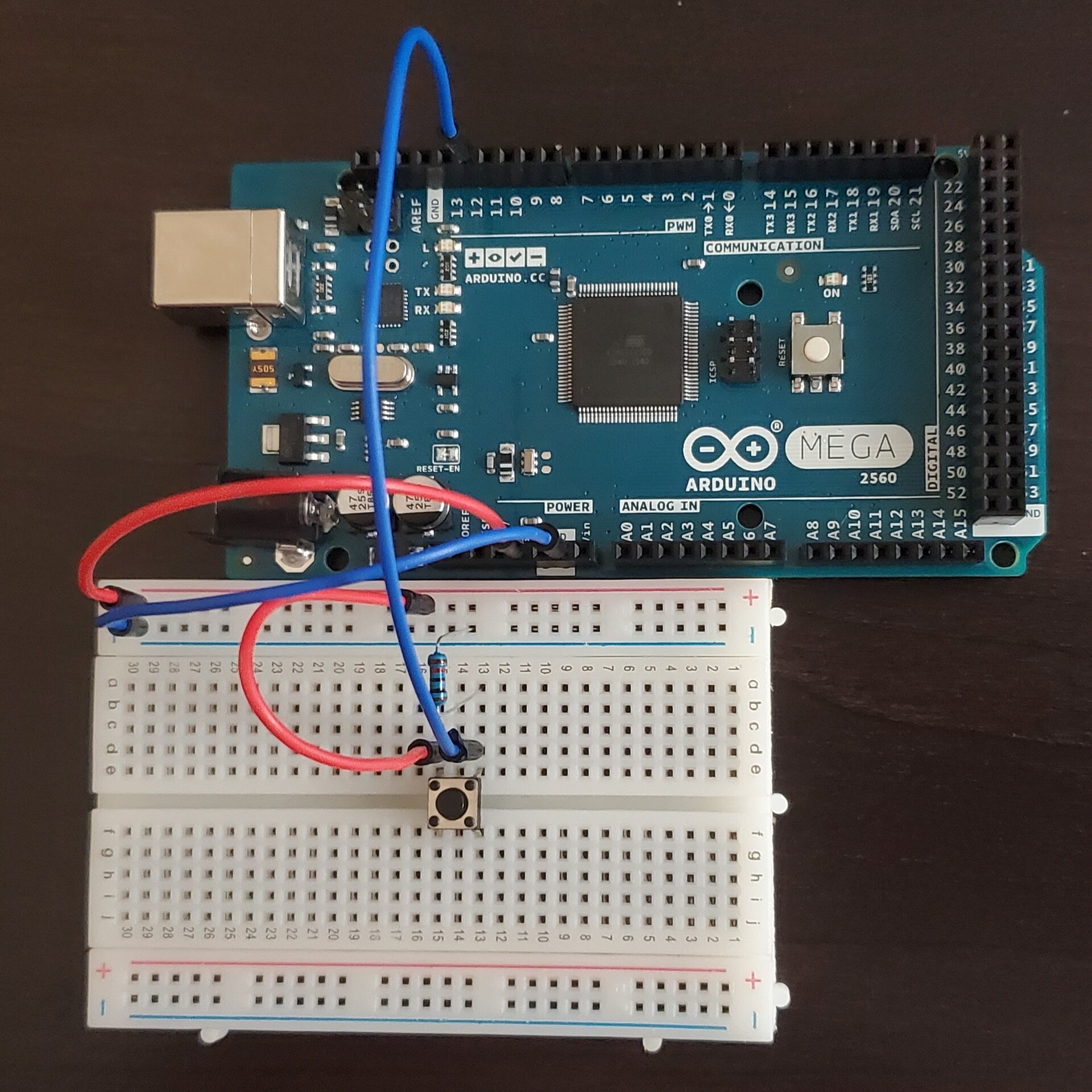
Now I need to set up a button using an Arduino, bread board, 10kΩ resistor, tactile switch, and wire.

the 10k resistor is used to create a pull-up or pull-down resistor. I followed this tutorial covering how to set up a pull-up / pull-down resistor. I also found a similar project laid out on the Arduino website

Problem

I am using an Arduino MEGA 2560 and ran into an unexpected error message. I set up the single tactile switch with a pull-down resistor connected to the Arduino MEGA 2560 5V, and pin 12.

The problem can about when I started to code. I was able to receive a analog '0' or '1' when pressing the tactile switch (found in the serial monitor window, COM5, in the picture below) '0' meaning open (button not pressed or up) and '1' meaning short (button pressed or down)
I tried to turn the analog signal into a Keyboard press using (#include "Keyboard.h") an error Occurred asking if I included (#include "Keyboard.h"). After a quick google, apparently only Arduinos with USB support can assess keystrokes and mouse control LINK. Apparently, a very common problem or "misunderstanding" with Arduino products, as I found several forms around the  subject. found some "workarounds to the problems which include downloading different files to my computer or Arduino or writing a separate script for the computer to take analog inputs and change them to a keystroke LINK. However, I am not interested in this pipeline and this is also over my head.

7/8/21

I went back to my departments small electronics cart in search for an Arduino Leonardo. I learned Leonardo's have native USB control, meaning I can use keystroke and mouse inputs with them. I ended up finding an off brand, Chinese made, Idunino Leonardo.

I ran into some troubles when trying to use the Iduino with the Arduino IDE, the test editor could not find the port the Iduino was using and I could not find a solution or a fix online. I ended up ordering a personal Arduino Leonardo. After reading up on the capabilities of the board I will definitely get a lot of use out of this board. I might also acquire a set of arcade buttons so I can use them with the board for a final project.

6/28/21 - Electronics - Questions & Future Projects

General / 10 January 2022

6/28/21

This is a list of questions and possible future project / questions/things I want to explore further

1. How to "remap" a keyboard button to a button?

    a. Then, can I have buttons "trigger" event in p5.js. or Unity?

        I. I could make a  p5.js program which uses a letter "A" keyboard press but instead of using the keyboard I can program a buttons/switch to output the letter "A".

    b. what about forms of input: potentiometers, sliders, joysticks?

       I. Link 1

       II. Link 2

    c. After some research, apparently the button device things I'm thinking of are called "button boxes". simply, a box with different types of analog button inputs on it.

       I. Link 3


2. Motors and actuators

    a. What are they?

    b. How to set them up?

    c. How to use them?


3. Infrared LEDs and sensors

   a. Link 4

   b. Are infrared LEDs treated differently then other kinds of LEDs or can I use them in the same way as other visible light LEDs?

   c. Infrared sensors... what do they look like? How do use them?

   d. Link 5

6/25/21 - Electronics - Buttons!!!

General / 10 January 2022

6/25/21

Video tutorials I watched and followed

Pictured below, I used a 250Ω resistor, tactile switch, and a white LED. When I push the tactile switch down, voltage is sent through the LED causing the LED to light up. When I release the switch, the voltage sent through the LED is stopped causing the light to turn off.

6/25/21 - Electronics - Into the thick of it!

General / 10 January 2022

6/25/21

I opened and organized the components I received in the mail. I then found this list of tutorials. I worked through the first 25 videos. with the components I had I was able to follow along with most of the videos.

These are the notes I took during the videos:

NEXT

By working through the videos I was able to create several different circuits utilizing a light emitting diode (LED). Pictured below, is an illuminated LED. I used a breadboard, white LED 250Ω resistor, a power source, and a wire to turn the LED on. 5v is coming from the power supply module and is being powered by my computer.

Next, pictured below, I replaced the resistor with a potentiometer, which allowed me to adjust the brightness of the LED as I turned the blue dial. 

6/21/21 - Electronics - Questions

General / 10 January 2022

Today I reached out to my father. He is a Toyota Technician and has a hardware electronics background. I asked him several questions and he helped me map out a better plan for the summer.

Questions?

Q: What is the difference between microcontrollers and "everyday electronics" ... Like house electronics vs automobile electronics?

    A: Nothing they are the same, just different voltages.

Q: Where should I start? I am interested in working with "buttons" should I start small and work up to larger systems, Is it worth the money and time spent or should I start big and possibly save money?

   A: Start small and learn the basics first. Components are not expensive and you can do a lot with a little. Once you make something with a bread board and smaller buttons you can simply upgrade the buttons to work with arcade buttons or larger buttons. 

Q: How do I save something I made on a breadboard?

   A: Learn hoe to solder and get a soldering board that looks like your bread board, Then transfer the components and wire from one to the next.

Next Steps

These answers were very helpful. I then purchased a soldering iron, 5 solder breadboards, and a general components kit with a plethora of components to use. 


6/14/21 & 6/19/21 - Electronics - Arduino MEGA 2560

General / 10 January 2022

6/14/21

I acquired a Adafruit Bluefruit micro controller and an Arduino MEGA 2560 micro controller  from a professor. I am using the Arduino IDE (text editor). I started with the bluefruit device and was unsuccessful in downloading the correct drivers to use the bluefuit controller. I assumed, since I was using the official Arduino text editor, I would have more luck with the Arduino. I understand the Adafruit and Arduino boards do different things. Turns out I got the wrong plug in cord for the Arduino board. I will have to get a different one.

6/19/21

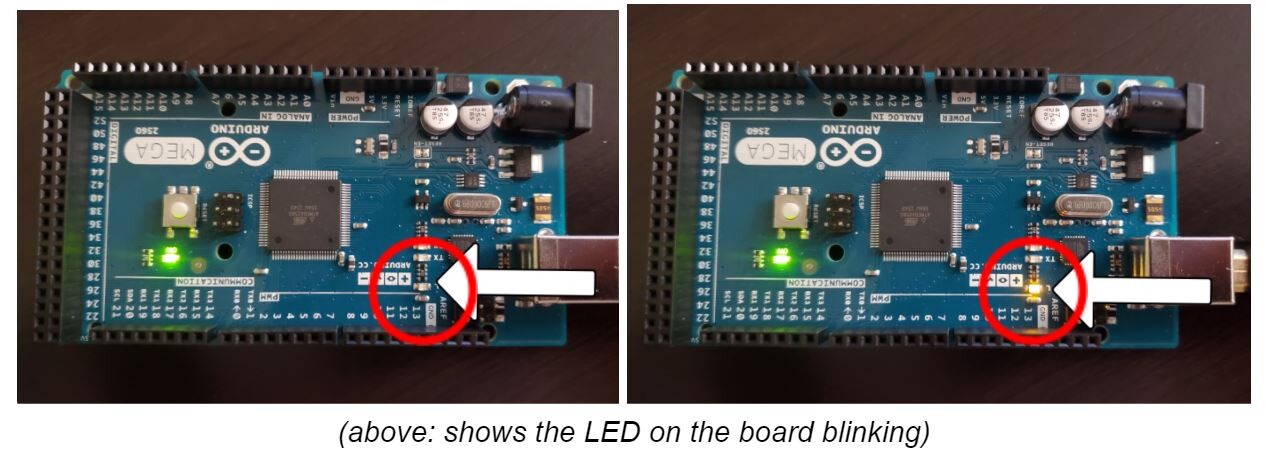
I got a cord to plug the Arduino into my laptop. All is good to go. To begin I followed this tutorial. The tutorial had me open the Arduino desktop web editor, Plug the Arduino into my computer. Update the board, processor, and port. Then run an example patch. The example program made an LED blink on the Arduino board.

In the code I changed the delay (found under the loop function) from '1000' to '250' and the LED would then blink faster.